
Addon Guide · Beginner Friendly
Resin2FDM Walkthrough
Resin2FDM Designed by Painted4CombatMaintained by Clonephaze
A step-by-step guide for the R2FDM workflow, designed for beginners and experienced users alike to follow along. Start with "I just installed the addon" and end with a ready-to-print FDM miniature.
New to Blender? No worries — the next section explains the minimum you need to know.
Before You Start
Section 1
This addon is designed so that you can follow a fixed set of steps in the same order every time. You do not need to understand all of Blender to be successful with Resin2FDM.
What you need installed
You do not need a special PC or pro tools, but a few basics are required:
- Blender 4.2 or newer. Earlier versions are not supported as of v1.5.0.
- The
Resin2FDMaddon installed and enabled in Blender. If you are not sure, go to Edit → Preferences → Add-ons and search forResin2FDM. Make sure the checkbox is ticked. - At least one STL file that already has resin supports on it. (This addon expects a pre-supported model.)
Optional but helpful: keep a test miniature handy that you do not mind experimenting on while you learn the workflow.
A 2-minute Blender crash course
We are only going to touch a tiny, safe slice of Blender. If you know these basics, you are ready:
- The 3D Viewport — This is the big main window where you see your model. When this guide says "in the 3D view" or "in the viewport", it means that area.
- Objects vs. the scene — A scene is just a container that holds objects. Each imported model, support cluster, or helper thing is an object. Resin2FDM will create and rename objects like
MINIATUREandSUPPORTSfor you. - Selecting things — By default in Blender 4, you left-click to select. You can hold Shift and left-click to select more than one object. When this guide says "select the miniature", it means click those object(s) in the viewport so they turn highlighted. To de-select everything, click on empty space in the 3D Viewport, or press Alt+A. To remove just one object from your selection, hold Shift and left-click it again.
- Where to find Resin2FDM — In the 3D Viewport, press N on your keyboard. A side panel will slide out on the right. Look for a tab called Resin2FDM. All of the buttons and panels in this walkthrough live there.
If anything behaves unexpectedly, remember that Ctrl+Z will undo the last operation. You can press it multiple times to step back through what you just did until the scene looks right again.
Every operation in Resin2FDM can be undone with Ctrl+Z. If something looks wrong, undo and try the step again.
Core Workflow
Section 2
Follow these steps in order for a typical supported miniature: prepare a clean scene, import, split, assign the miniature, thicken supports, mesh repair, export, then move into Orca for slicing.
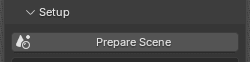
Resin2FDM Setup panel with the Prepare Scene button. Prepare a clean Resin2FDM scene
- In Blender, switch to the Resin2FDM tab in the right-hand N-panel of the 3D Viewport.
- Click the button labelled Prepare Scene.
- If you have already used the addon in this Blend file, the button may say Reset Scene instead.
- What this button actually does (in plain language):
- Creates or resets a scene just for this workflow.
- Sets the units so that 1 Blender unit = 1 mm, which keeps scaling sane for printing.
- Optionally shows a "build plate" visualizer (enabled in Edit → Preferences → Add-ons → Resin2FDM) so you have a sense of your printer's size.
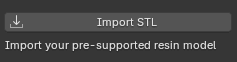
After Import STL, your pre-supported model will appear in the 3D Viewport. Import your supported model
- In the same Setup section, click Import STL. Blender will open a file browser window.
- Browse to the folder where you keep your pre-supported resin models. You can select one STL or several STLs to import at once, useful for models that are split into multiple pieces.
- Click Import STL in the file browser.
- If you imported one file, you will usually see one object.
- If you imported several, you may see them stacked near each other or overlapping for now.
- At this point you do not need to fix the position, rotation, or size of the model. Resin2FDM will handle snapping your model to the plate and splitting in the next steps.
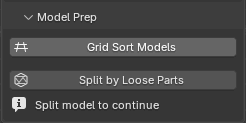
Model Prep with Grid Sort Models and Split by Loose Parts Split model by loose parts
- In the Model Prep section, click Grid Sort Models (if you see this button). Resin2FDM will arrange your objects into a grid.
- Click Split by Loose Parts. This is the first "real work" step:
- During this step, you will see a progress bar in the Resin2FDM header. You can press Esc to cancel if it seems stuck.
- The tool will also move each piece so its bottom sits on Z = 0, which lines up with your printer's build plate.
- When the split is done, Resin2FDM marks the scene as "split complete", unlocking later parts of the workflow, such as assigning the miniature and optional advanced features like tip detection.
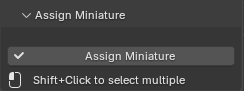
Assign Miniature panel with matching button. Assign miniature vs supports
- Before you continue, you need to tell Blender which pieces of geometry are the actual model (the miniature) and which are just supports.
- In the 3D Viewport, use left-click (and Shift + left-click for multiple objects) to select only the miniature parts.
- Do not select the support columns or tips.
- If you accidentally select something wrong, press Ctrl+Z to undo and try again.
- Once you are happy with your selection, click Assign Miniature. Resin2FDM will:
- Merge your selected objects into one and rename it to MINIATURE.
- Look at the remaining pieces and automatically separate them into SUPPORTS (thin columns and connection pieces) and, when appropriate, a BASE object.
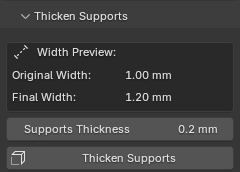
Thicken Supports panel with Supports Thickness slider. Thicken supports
- In the Thicken Supports panel you will see two values, a slider, and a thicken supports button.
- The first value shows the current average diameter of typical support columns in mm.
- The second value shows an estimated new diameter after thickening.
- Drag the slider to choose how much extra material to add to the support columns.
- You want to shoot for making your supports 1mm to 1.8mm after thickening, depending on your nozzle size and printer capabilities.
- Most find that 1-1.4mm final diameter works well for even 0.4mm nozzles.
- Once you are happy with the thickness, click Apply Modifier. This "bakes" the thickness into the actual geometry so your slicer sees the stronger columns.
- If you change your mind, you can still undo with Ctrl+Z immediately after applying.
- In the Thicken Supports panel you will see two values, a slider, and a thicken supports button.
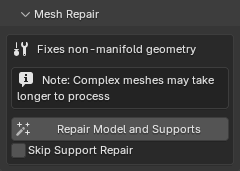
Mesh Repair panel. OptionalMesh Repair
Skip this step if your slicer imports the model without errors — minor manifold warnings on
SUPPORTSare normal and can safely be ignored. Run it if your slicer complains about missing triangles, holes, or invalid geometry on the actual miniature.When you click the repair button, Resin2FDM scans each object and attempts to fix common mesh issues:
- On complex models this can take a while, as Blender inspects and cleans every face.
- The tool tries to fix problems rather than delete geometry, but it can still affect very delicate details.
- If you dislike the result, press Ctrl+Z immediately to undo and skip repair for that model.
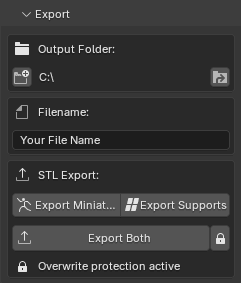
Export panel with STL export buttons. Export STL files
- You will see a field for the output folder and a base file name.
- By default R2FDM will set the export folder to the same folder where you imported the STL from.
- Click
Set Output Folder(left) to change it. - Click
Open Output Folder(right) to quickly open the folder in your file browser.
- There is also a field to set the base name of your exported files. By default it uses the name of the imported STL file.
- Choose one of the three export buttons:
- Export Miniature writes only the
MINIATUREobject. - Export Supports writes only the
SUPPORTSobject. - Export Both writes two STL files at once using the base file name plus a suffix.
- If the file already exists, the tool will warn you. If you still wish to overwrite it, press the lock icon.
- Export Miniature writes only the
- You will see a field for the output folder and a base file name.
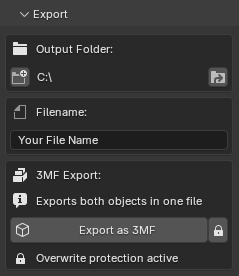
Export panel with 3MF export enabled. OptionalExport a 3MF scene instead
Use this instead of 7a if you want Orca to open ready-to-slice with no manual configuration. The 3MF format embeds your printer profile, support process settings, and per-object overrides directly in the file.
- In the Export panel, select a Slicer Profile from the dropdown. A bundled "Default (Bambu A1)" profile is always available.
- Select a Support Preset if you have saved one, or leave it on Default.
- Make sure your output folder and base file name are set, then click Export 3MF. Resin2FDM writes a single 3MF archive with miniature and supports as separate objects, plus the embedded slicer configuration.
Users have reported this also works well in PrusaSlicer.
Core workflow complete!
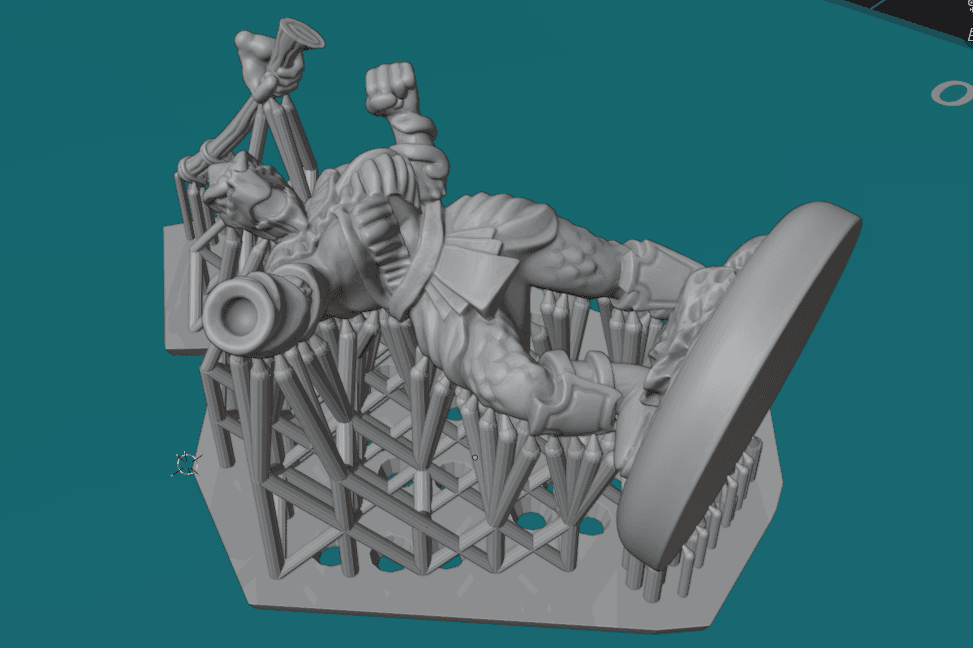
You now have clean FDM-ready exports of your miniature and supports from Blender. From here you have two paths.
Option A: Go straight to slicing
- Bring your exported STL or 3MF files into your slicer of choice. The next section covers Orca step-by-step.
- Similar slicers like PrusaSlicer can be used, but official support is for Orca.
Option B: Explore advanced features
- Tip Detection, Auto-Select, Support Reinforcement, and extra export tricks can help with trickier models or speed up your workflow.
OrcaSlicer Setup
Section 3
How to bring your Resin2FDM exports into OrcaSlicer (and similar slicers) and apply recommended print settings.
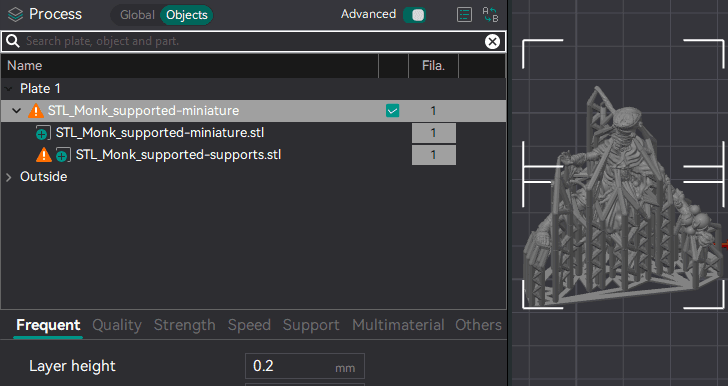
Import the miniature, supports, and optional tips together, then split them into separate objects. Import and split in Orca
With Blender done, it is time to move into OrcaSlicer or another slicer based on the Orca framework (such as Bambu Studio or Elegoo Cura/Orca).
- Open Orca on a blank project.
- Find the files you exported from Blender: one for the
MINIATURE, one for theSUPPORTS, and (optionally) one forSUPPORT_TIPSif you used the tip export features. Select all of them at the same time and drag them into the Orca window.- If you exported a single 3MF scene instead of STLs, just drag that one file in.
- When Orca pops up a dialog asking how to import, choose "Import as single object". This keeps everything perfectly aligned in 3D space.
- In the Objects panel, right-click the combined object and choose Split → to objects. You should now see separate entries, one for each imported object, still sitting exactly where they should around each other.
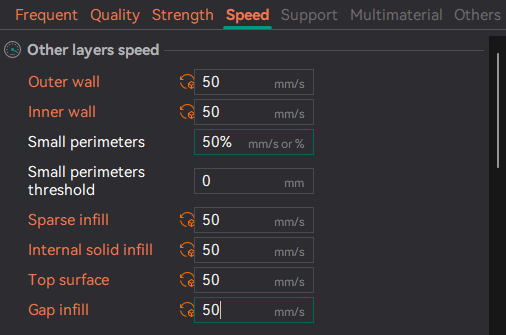
Use separate processes for the miniature and supports. Configure separate processes
These recommendations are based on Painted4Combat's testing with 0.2 mm and 0.25 mm nozzles on common FDM printers like the Neptune 3 Pro and Bambu A1. Feel free to adjust for your own machine, but this is a solid starting point.
Miniature process:
- Start from a high-detail profile for your printer with a layer height around 0.08-0.12 mm.
- Keep your usual wall count and infill.
Support process — with the supports object selected:
- Set the layer height to roughly double the miniature's (e.g. 0.16 mm if the mini is at 0.08 mm). This prints supports every second layer and saves significant time.
- Set wall loops to 2.
- In the Strength tab, set Minimum Sparse Infill Threshold to 0.
- In the Speed tab, set most speeds to around 50 mm/s. If supports snap mid-print, lower the outer wall speed to 35-40 mm/s.
3MF export handles this automaticallyIf you used the Export 3MF option with a Support Preset, these settings are already embedded in the file. Orca will apply them automatically on import — no manual configuration needed.
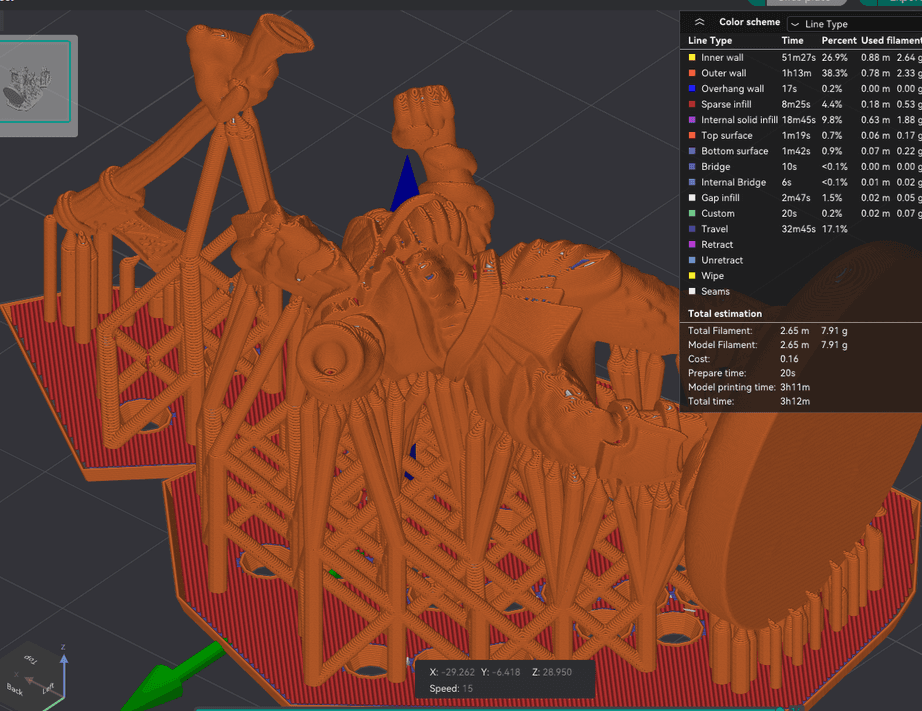
Check the preview before sending the file to your printer. Slice, preview, and send to printer
Once your processes look good, slice and sanity-check the toolpaths.
- Scrub through the layer preview. You should see the miniature printing at your fine layer height and supports at thicker, faster layers.
- Make sure supports reach the model cleanly with no unsupported islands.
- On a typical hero-sized character, this alone can take a 6+ hour ultra-fine print down to around 4 hours without affecting visible detail.
When you are happy with the preview, export G-code or send the job to your printer as normal. After printing, remove supports with flush cutters or a hobby knife and clean up remaining marks with a blade or small files.
Hardware tips:
- A 0.2 mm nozzle gives the sharpest detail and most reliable tiny supports. A 0.25 mm nozzle also works well; 0.4 mm is possible but less forgiving.
- Matte or satin PLA releases from supports more easily than glossy or hard filaments.
Advanced Features
Section 4
Once the basic workflow feels comfortable, these tools can speed things up or handle trickier models. They are completely optional for your first successful print.
Feature toggles & Open All Menus
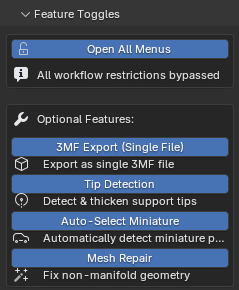
The Feature Toggles panel controls which parts of the addon are visible and how guided the workflow feels.
If you are just starting out, the core workflow above works fine with all advanced toggles off.
Open All Menus: When it is on, you will see all panels all the time, even if the scene is not ready for them yet. Useful if you already understand the workflow and just want quick access.
The rest of the features in this panel are only available in the Advanced version of the addon (3MF Export, Tip Detection, etc.). If you are using Resin2FDM Lite, you will see fewer options here, which is normal.
Custom default values
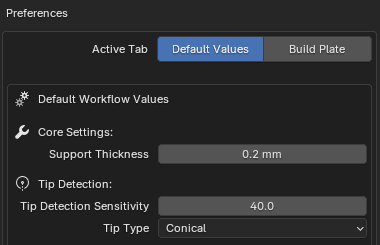
You can customize how Resin2FDM behaves every time you start a new scene.
- Go to Edit → Preferences → Add-ons and search for
Resin2FDM. Expand the addon entry to reveal its preferences. - Here you can set your own default values for things like support thickness, tip size, the auto-select sensitivity slider, and which feature toggles are enabled by default.
- Once you have dialed in settings that work well for your printer and workflow, they will be applied automatically every time you click Prepare Scene. No need to tweak the same sliders over and over.
Auto-select miniature parts
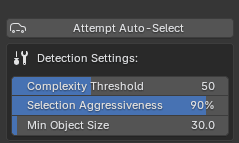
- Available after you run Split by Loose Parts, and after Support Tip Detection if enabled. Click Attempt Auto-Select and Resin2FDM will look at each loose piece in the scene and guess which ones are likely to be the real model instead of supports.
- Adjust the sensitivity slider to cast a wider or narrower net. Run Attempt Auto-Select again after each change.
- Before you click Assign Miniature, always double-check the selection in the 3D Viewport. Remove any misidentified supports with Shift + left-click.
Think of Auto-Select as a helper that gets you close to the right answer — you still make the final call.
Tip detection & thickening support tips
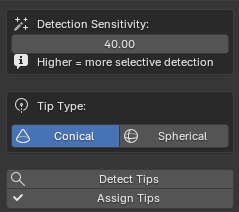
- Available just after splitting by loose parts. Choose your support tip shape and size:
- Use the slider to set the expected tip size.
- If your imported model uses cone-shaped tips choose Conical, or Spherical for rounded tips.
- Click Detect Tips and Resin2FDM will scan the loose objects for objects that look like tiny support tips.
- If successful, click Assign Tips, then move on to assigning your miniature.
- Once regular supports have been thickened, go to the Thicken Tips panel to beef up only the very ends of the supports. This prevents tiny tips from vanishing in the slicer without over-thickening the whole column.
Support Reinforcement System
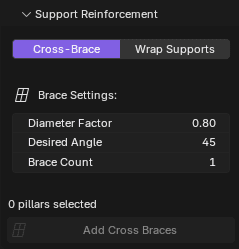
Adds structural geometry to your FDM supports before export to reduce snapping mid-print. The panel hides once your SUPPORTS object is present, keeping the UI tidy.
Cross-Brace connects isolated pillars with diagonal braces. Set the angle, pillar geometry, and the Brace Count (1-10, default 1). Multiple braces are spread evenly along the shared height — odd counts automatically alternate direction to form a natural X/zig-zag pattern.
Wrap Supports clusters touching supports and wraps them in a convex hull for maximum rigidity. Good for dense support forests.
All values and the feature toggle are configurable in Edit → Preferences → Add-ons → Resin2FDM.
Support Settings Presets
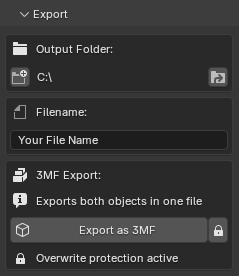
Save and reload complete sets of Orca support print settings — layer height, wall loops, infill, speeds, and minimum sparse infill area — as named presets.
- In the Export panel, the Supports dropdown lists all saved presets. Selecting one immediately applies its values to the current scene.
- Save Preset prompts for a name. Delete Preset asks for confirmation. Rename Preset pre-fills the existing name.
- Presets are stored as JSON files in Blender's user config directory and persist across sessions and Blend files.
- When you export a 3MF with a preset selected, the settings are embedded per-object in the archive so Orca applies them automatically on import.
Separate Support Tips Export
For multi-material printing workflows, export support tips as a separate file or object. This lets you assign different materials in the slicer — for example, PETG tips with PLA supports for easier removal.
- When exporting supports (STL or 3MF), hold Ctrl while clicking the export button to export tips separately.
- STL exports create separate files:
{name}-supports.stland{name}-support_tips.stl. - 3MF exports keep tips as a separate named part inside the same archive.
- Export Both also supports Ctrl+click for three separate files: miniature, supports, and tips.
Build Plate Visualizer
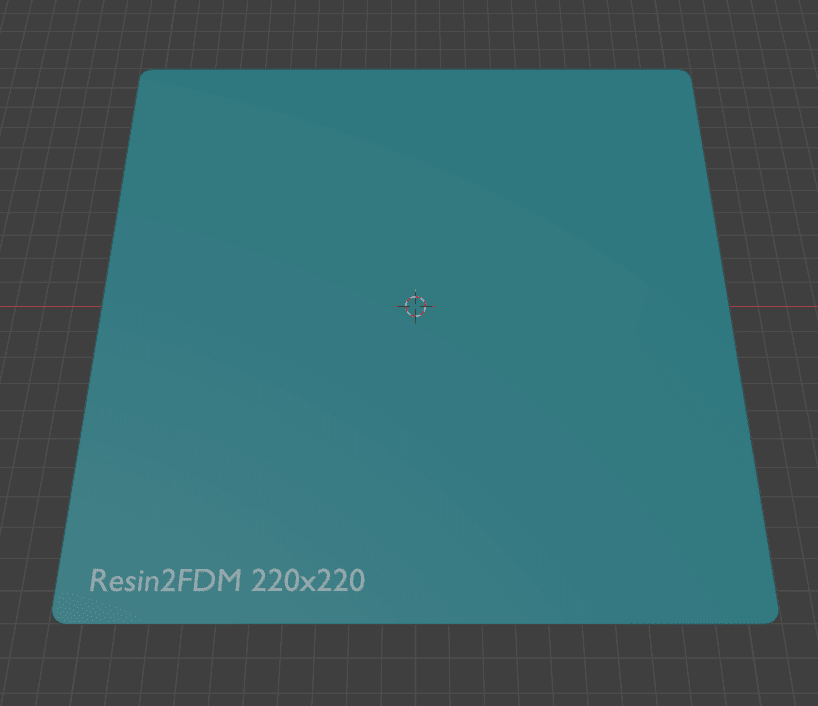
A visual reference for your printer's bed size in the Blender viewport.
- Open Resin2FDM preferences, check Show Build Plate, and enter your printer's X, Y, and Z dimensions in millimetres.
- The next time you click Prepare Scene, a transparent plate will appear in the 3D Viewport. This helps you see at a glance whether your model fits before you export.
- You can also enable the build volume visualizer — a box showing the full printable height of your printer.