
Usage Guide · Blender 4.2+
Blender 3MF Import/Export
Full 3MF support for Blender — import and export multicolor models, MMU paint data, and metadata. Free and open source.
Guide · Section 1
Getting Started & Importing
The addon adds two menu entries to Blender: File → Import → 3D Manufacturing Format (.3mf) and File → Export → 3D Manufacturing Format (.3mf). Beyond that, a sidebar panel lives in the 3D Viewport — press N and look for the 3MF tab. That's where metadata editing, part types, and the MMU Paint Suite live.
You don't need all of that on day one. If someone handed you a .3mf and you just want to open it, File → Import is enough. Come back to the rest when you need it.
Blender 4.2+ supports drag-and-drop. Drag a .3mf file directly into the 3D Viewport or the Outliner and the import dialog opens automatically, no menu required.
Where Things Live
| Feature | Where to find it |
|---|---|
| Import | File → Import → 3D Manufacturing Format (.3mf) |
| Export | File → Export → 3D Manufacturing Format (.3mf) |
| Metadata panel | 3D Viewport → N → 3MF tab (Object/Edit mode) |
| MMU Paint Suite | 3D Viewport → N → 3MF tab (Texture Paint mode only) |
| Triangle Sets | 3D Viewport → N → 3MF tab (Sculpt mode only) |
| Import/Export defaults | Edit → Preferences → Add-ons → 3MF → Import / Export |
| Slicer Profiles | Edit → Preferences → Add-ons → 3MF → Advanced |
Importing a 3MF File
Open the import dialog from File → Import → 3D Manufacturing Format (.3mf). You can select multiple files at once, each one imports as its own set of objects. After import, the view zooms to frame everything that came in.
What gets preserved
The addon reads quite a bit from the file automatically:
- Geometry — vertices, triangles, component hierarchies
- Materials — basematerials, colorgroups, textures, PBR properties
- Multi-material paint data — Orca
paint_colorattributes or Prusammu_segmentationstrings (when Material Mode is set accordingly) - Metadata — Title, Designer, Description, Copyright, and any custom fields
- Triangle Sets — if the file contains triangle sets, they're imported as Blender's built-in Face Maps with the same names
- Slicer config files — project_settings.config, Slic3r_PE.config, etc. are stashed as Blender text blocks under
.3mf_config/so they round-trip back on export
Import Options
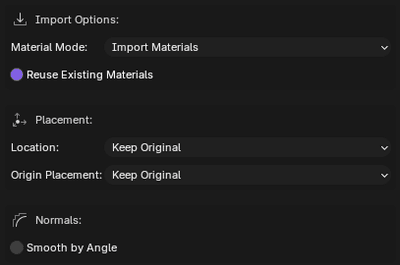
Material Mode
The most important import setting. Controls what happens to all the color and material data in the file.
| Mode | What it does | When to use it |
|---|---|---|
| Import Materials | Reads basematerials, colorgroups, textures, PBR data | Default. Good for viewing colors or round-tripping files. This will import paint data as geometry subdivisions. |
| Import MMU Paint Data | Converts slicer segmentation data into a UV paint texture | When you want to edit or re-export multi-material paint zones as actual paint data. See the advanced section below for more details. |
| Geometry Only | Skips all material and color data | When you only need the geometry data |
Converting segmentation data to a UV texture involves subdividing every triangle and painting pixels. On large models this takes a while. The status bar shows progress. If you just need to view the model, Import Materials is much faster but won't give you editable paint data.
Reuse Existing Materials
On by default. When importing a file you've brought in before, this matches and reuses materials by name and color instead of creating duplicates. Turn it off if you want fresh material copies.
Location
Controls where imported objects land in the scene.
| Option | Result |
|---|---|
| Keep Original | Places objects at the coordinates stored in the file |
| World Origin | Centers everything at (0, 0, 0) |
| 3D Cursor | Places objects at the current 3D cursor position |
| Grid Layout | Arranges multiple imported files in a tidy grid |
Grid Spacing appears when Grid Layout is selected — it sets the gap between objects (default 0.1 scene units).
Origin Placement
Adjusts where each object's origin point lands after import.
| Option | Result |
|---|---|
| Keep Original | Origin at the 3MF file's reference corner |
| Center of Geometry | Origin at the bounding box center |
| Bottom Center | Origin at the base center — useful for models you want sitting on Z = 0 |
Smooth by Angle
Off by default. When enabled, applies a Smooth by Angle modifier to every imported object. This gives a nice smooth look to curved surfaces without needing custom normals or edge splits, but can hide flaws in the geometry if you're trying to inspect it closely. If you want to edit the mesh, it's best to leave this off.
Bottom Center origin placement is a personal favorite for 3D printing models. It makes it easy to position the model on the build plate and gives you a consistent reference point for scaling and alignment.
Advanced Import Options (MMU Paint mode only)
These only appear when Material Mode is set to Import MMU Paint Data.
UV Method
| Option | When to use it |
|---|---|
| Smart UV Project | Default. Best for most models, especially if you intend to manually paint on the model. |
| Lightmap Pack | Unique rectangular island per face. Higher color fidelity at boundaries, but more inter-island gaps. |
Texture Size
| Option | What happens |
|---|---|
| Auto | Picks 2K for under 5k faces, 4K for under 20k, 8K for larger |
| 1024 - 16384 | Forces a specific resolution |
Bigger textures mean sharper paint zone edges on export, at the cost of Blender performance and slower segmentation encoding. Auto is usually the right call, the exporter tool will automatically subdivide the face as needed if it detects paint zones that are too large for the current resolution.
Import Defaults
Every import setting can be configured as a default in Edit → Preferences → Add-ons → 3MF → Import tab. Whatever you save there pre-fills the dialog every time, so you're not re-tweaking the same options on every import.